Setting up an Android TV box for the first time? Don't worry — the process is straightforward, and this guide walks you through every step. We'll use the DigiBox D6 MAX as our example, but the general process applies to any Android TV box running Android TV OS.
Step 1: Unbox and Check Contents
Inside the DigiBox D6 MAX box, you'll find: the TV box itself, a backlit remote control (batteries not included — you'll need two AAA batteries), an HDMI cable, a USB-C power adapter, and a mini wireless keyboard as a bonus accessory. Having the HDMI cable included means you're ready to connect right away.
Step 2: Make Physical Connections
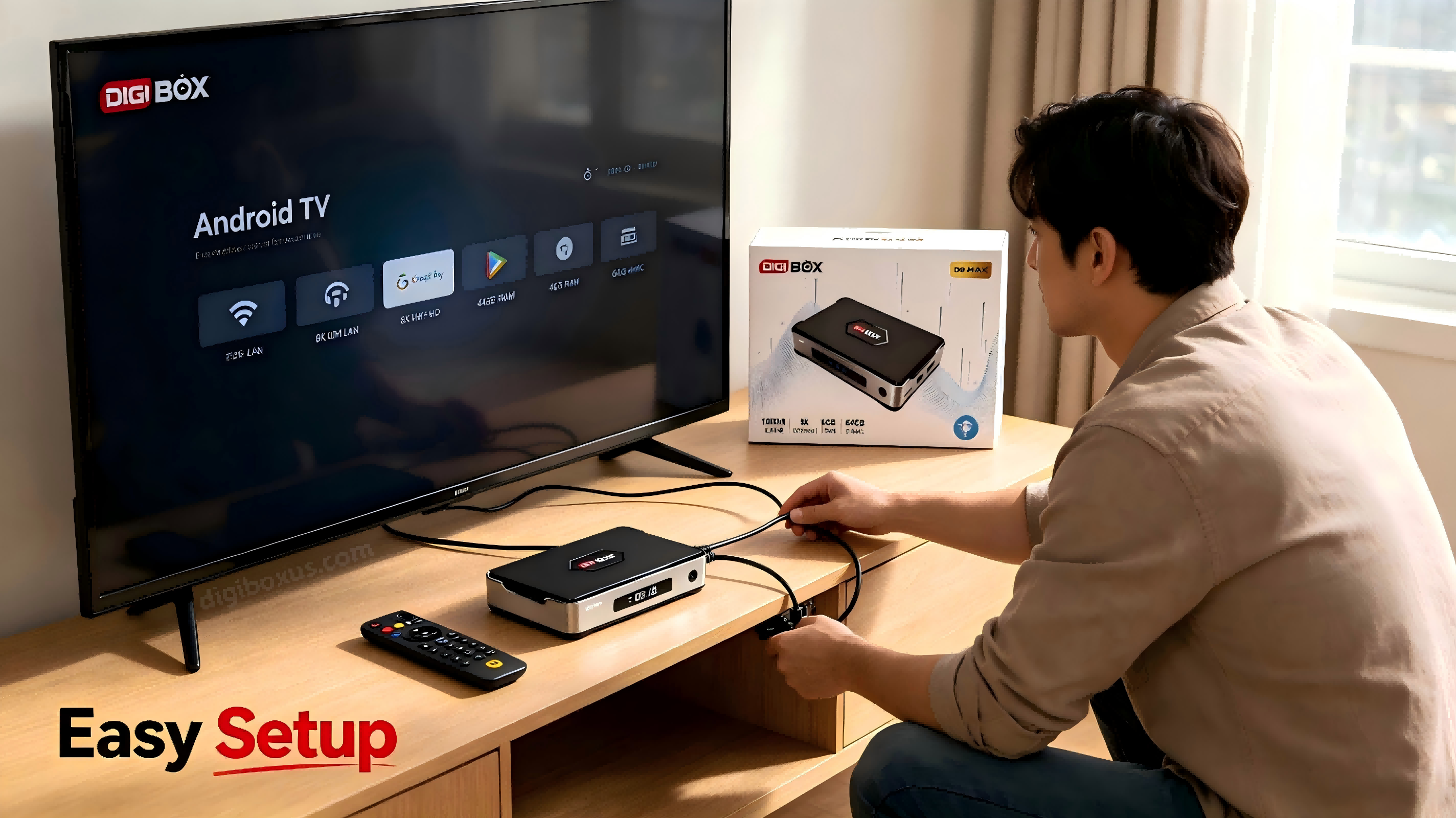
Start by connecting the HDMI cable from the D6 MAX to an available HDMI port on your TV. For power, plug the USB-C adapter into the box and connect to a wall outlet. Tip: the D6 MAX can also be powered by a standard phone charger with USB-C output — handy if you want to use the included adapter elsewhere. Note that portable power banks won't work with this device.
For internet, you have two options. For the best stability, connect an Ethernet cable from your router to the D6 MAX's gigabit port. Alternatively, you can connect via Wi-Fi during the setup process.
Step 3: First Boot and Initial Setup
Turn on your TV and select the HDMI input. The D6 MAX will boot into Android TV OS 12 setup. Follow the on-screen prompts to: select your language, connect to Wi-Fi (if not using Ethernet), and optionally sign in with your Google account. A Google account isn't required, but signing in gives you access to the full Google Play Store and syncs your app library.
Step 4: Install Streaming Apps from Google Play Store
Once setup is complete, open the Google Play Store from the home screen. Search for and install the streaming apps you already subscribe to — Netflix, YouTube, Disney+, Hulu, Prime Video, Spotify, and thousands more. Each app will ask you to sign in with your existing account. This is the same process as installing apps on your Android phone.
Step 5: Set Up Phone Remote (Android Only)
The D6 MAX supports using your Android phone as a remote control. To set this up, scan the QR code shown on the TV screen using your phone's camera, which will prompt you to download the companion app. Once installed, make sure your phone and the D6 MAX are on the same Wi-Fi network, open the app, and follow the pairing instructions.
Important limitation: This feature works with Android phones only. iPhones are not supported — Apple's iOS does not allow the necessary system-level access.
Step 6: Local Media Playback
To play your own video, photo, or music files, plug a USB flash drive into one of the three USB ports. Open VLC media player (pre-installed) or download a media player from the Play Store, navigate to your USB drive, and select your files. The D6 MAX supports 4K@60fps decoding, so your high-resolution local videos will play smoothly.
Common Issues and Solutions
- Remote not responding?Check that the batteries are inserted correctly and have charge.
- Wi-Fi won't connect?Try the 5GHz band for better performance, or use Ethernet for maximum stability.
- Apps won't install?Make sure you're signed into your Google account in the Play Store.
That's It!
Your DigiBox D6 MAX is now set up and ready to stream. Remember: install apps from the Google Play Store, use the streaming subscriptions you already have, and enjoy your content on the big screen. For more tips, check out our guide on using your phone as a TV remote and powering your box with a phone charger.